Everyone
Start Here: Dolly for Your Role
The short answer
Sign in at app.dollycard.com/login. Then find your role below and start with the first guide in the list.
Crew use a card and send receipts. Approvers review envelopes. Admins set up the show, its money and its cards. Accounting sets up the codes and gets everything into the books.
For help, use the chat button in the bottom right corner of Dolly, or email support@dollycard.com.
How Dolly is organized
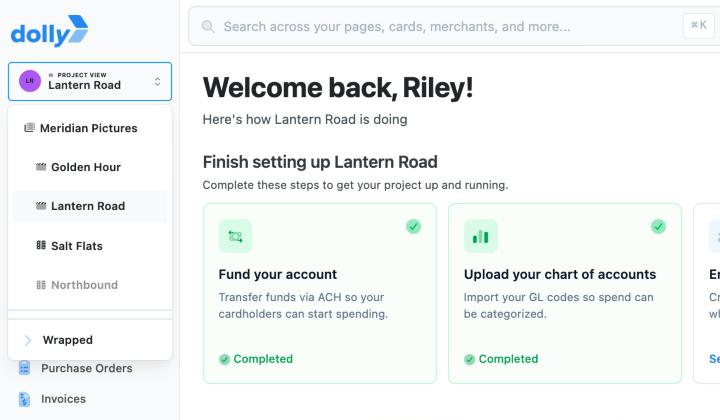
Each show is a production. A studio sits above its productions, and a project is a smaller show that spends from its studio’s balance. You can belong to several, with a different role on each.
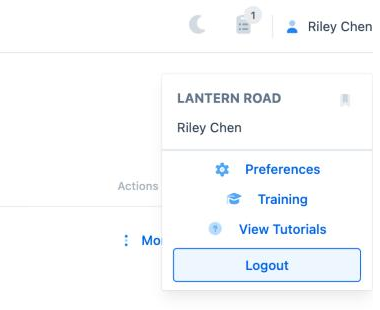
Click the show’s name at the top left to switch between them. To pick the show Dolly opens first, open the menu under your name and click the bookmark next to the show’s name (Set as default).
Crew
You have a Dolly card. Your job is to get a receipt and a code on every charge. Most of it works by text, with no sign-in. See Texting Dolly.
Approvers
You sign off on crew envelopes, and sometimes purchase orders, invoices or payments.
- Approvals in Dolly
- Envelopes for Admins: Approving, Posting and Settings
- Answering Your Accountant, for comments and kicked back envelopes
- Approving Invoices, POs and Payments, if your show pays vendors in Dolly
Admins
You set up the show, put money in and decide who gets a card.
Accounting
You load the codes, post approved envelopes and get it all into your accounting system.
- Chart of Accounts: Import, Fix and Replace
- Using Dolly with GreenSlate, Probooks or Vensure
- Envelopes for Admins: Approving, Posting and Settings
- Exporting from Dolly and Customizing Imports and Exports
- Reports and Statements
- Reimbursing Crew, if your show pays back out-of-pocket expenses
- How Accounts Payable Works in Dolly, if your show pays vendors in Dolly
Getting help
Chat with us. Use the chat button in the bottom right corner of Dolly. A person on the Dolly team answers.
Email. Write to support@dollycard.com.
Watch a walkthrough. Choose View Tutorials from the menu under your name for click-through demos.
Card questions like “why was I declined?” can also go straight to the Dolly number by text.
Click through it yourself
Frequently asked questions
- I don’t see my show after signing in.
- Click the show’s name at the top left and look through the list. If it isn’t there, ask the person who invited you to check that they added your email to that show.
- Which emails will Dolly send me?
- It depends on your role. See Emails and Texts Dolly Sends.
Keep reading
Get cards to your crew in as little as 24 hours.
Dolly issues controlled cards to every department, codes each charge to your budget, and keeps spend audit-ready as it happens.