For Admin
Issuing Cards and Inviting Crew
The short answer
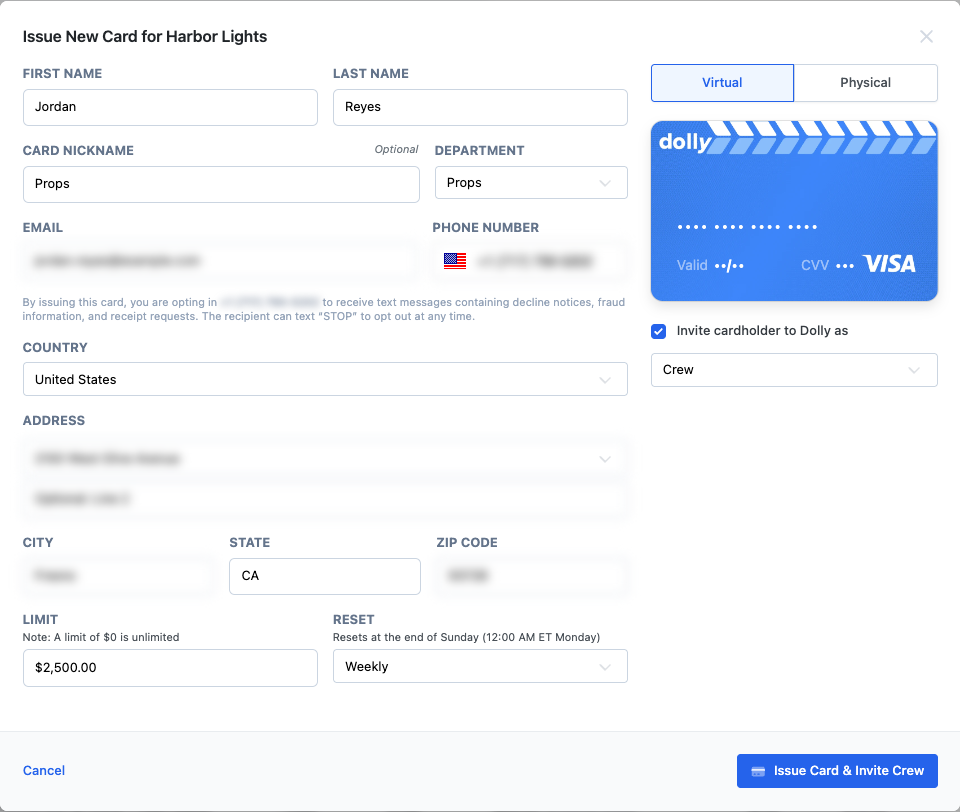
On Cards, choose Issue a new card. Enter the cardholder’s name, email, phone and department, set a Limit, and choose Virtual or Physical. Leave Invite cardholder to Dolly as Crew checked and they get a sign-in email. Dolly texts them that the card is ready.
Issue a card
- Go to Cards and choose Issue a new card.
- Enter First Name and Last Name (25 characters together), an optional Card Nickname, the Department, Email and phone.
- Set the Limit. A limit of $0 is unlimited. Reset is Weekly or Manual, where an admin raises it by hand.
- Choose Virtual or Physical. For physical, enter the address and pick a Shipping Speed. The dropdown shows how long each option takes. Preorder Card blocks spending on the virtual card until the physical one is activated.
- Choose Issue Card & Invite Crew.
Store blocks and spending rules are set for the whole production in Settings → Spend Restrictions.
What the cardholder gets
A text from Dolly saying the card is issued, with links to add it to Apple Pay or Google Pay. A physical card text says to activate it with the link when it arrives. Issuing the card opts their phone in to decline, fraud and receipt texts. They can reply STOP at any time.
An email with a temporary password. When they sign in, they set their name and a new password, then see their card. See signing in.
Inviting and re-inviting
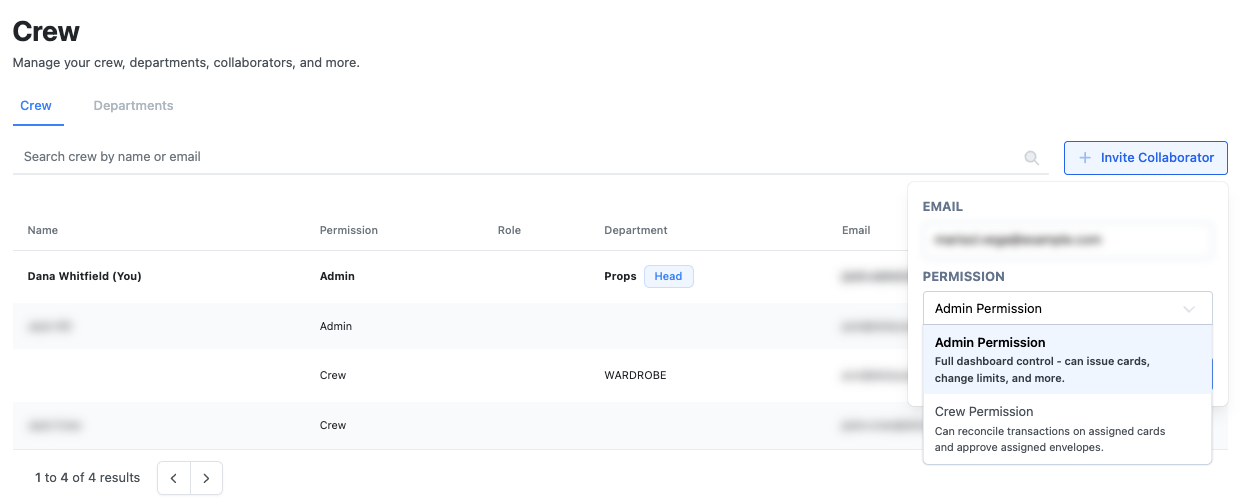
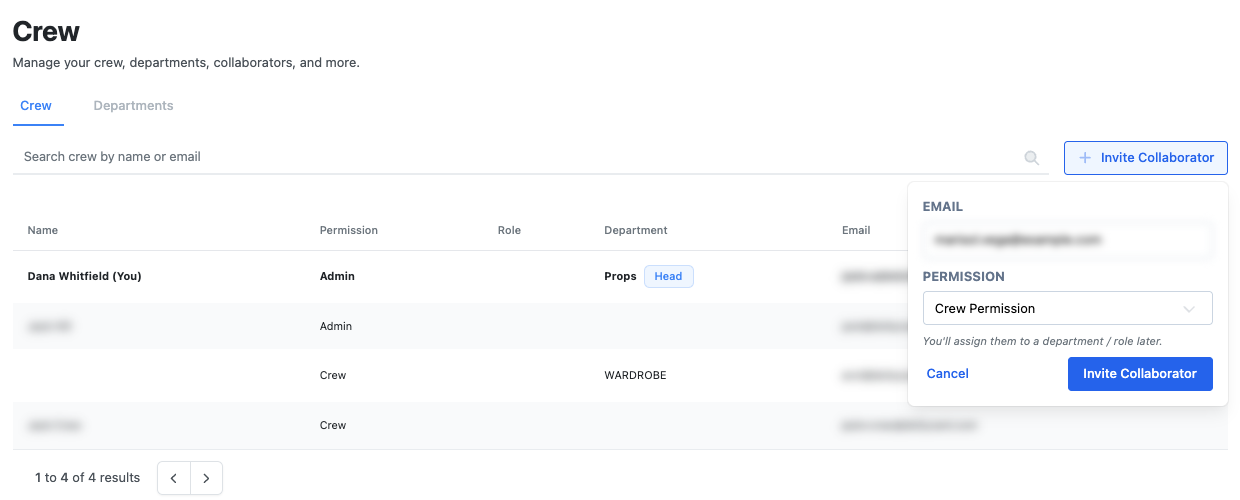
- To invite someone without a card, go to Crew & Departments and choose Invite Collaborator. Pick Crew Permission or Admin Permission.
- If an invite was missed or expired, open the person in Crew & Departments and choose Resend Invite.
- If a wallet link expired, Send Virtual Wallet Link on the card sends a new one. The cardholder can do this too.
Click through it yourself
Issue a card
Issue a physical or virtual card with the cardholder, department and shipping speed.
Update cardholder details and card limits
Change a cardholder’s details, set a custom spending limit and choose how often it resets.
Frequently asked questions
- What is the difference between Crew and Admin?
- Crew can reconcile charges on their own cards and approve envelopes they are assigned. Admins control the dashboard: issuing cards, limits, settings and more.
- How long does a physical card take?
- It depends on the shipping speed you choose. The Shipping Speed dropdown shows the estimate for each option.
Keep reading
Get cards to your crew in as little as 24 hours.
Dolly issues controlled cards to every department, codes each charge to your budget, and keeps spend audit-ready as it happens.