For Admin & Accounting
Chart of Accounts: Import, Fix and Replace
The short answer
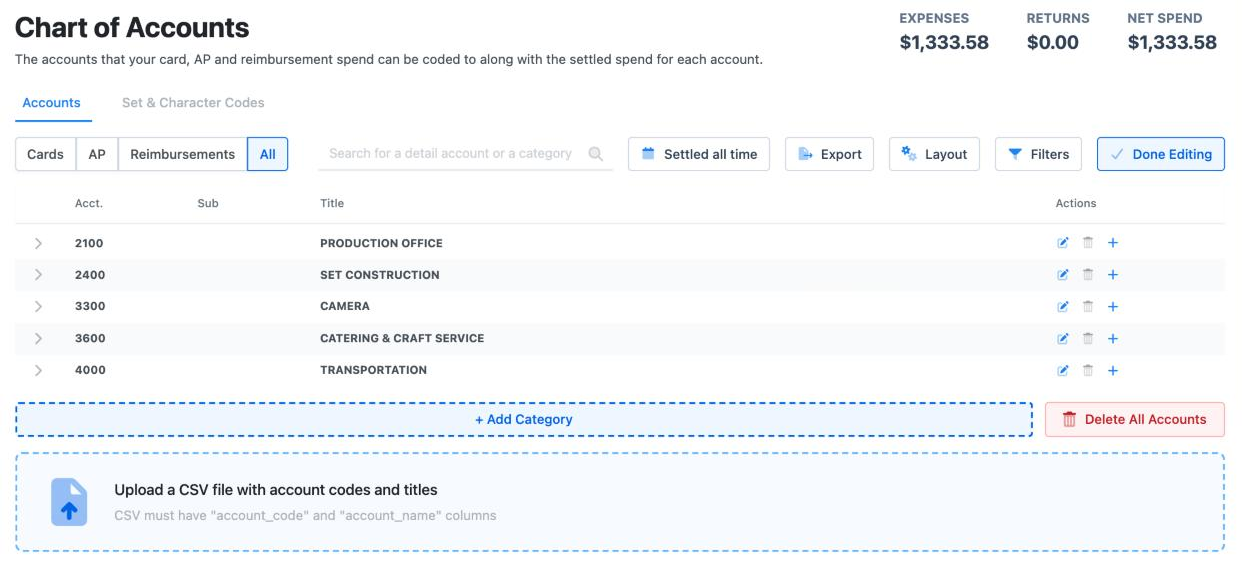
Open Chart of Accounts. On an empty chart, upload your budget (PDF or a photo, up to 10MB) and Dolly reads the accounts out of it for you to check. If you use GreenSlate or Probooks, pull the chart from there instead. You can also type it in with Edit.
To fix an account, choose Edit, change it, and choose Done Editing. An account that is already coded to charges can’t be deleted.
How the chart is built
| Level | Example | Can crew code to it? |
|---|---|---|
| Category (a header in your budget) | 2000 Production Staff | No |
| Detail account | 2015 Production Assistants | Yes |
| Sub-account (optional) | 2015-01 Office PAs | Yes |
Set and character codes are separate from the chart. They live under Set/Character Codes on the same page, not as accounts.
Three ways to get your accounts in
- From your budget. On an empty chart, drag your budget onto the upload box. PDF, JPG, JPEG and HEIC files up to 10MB work. Dolly reads it, asks you to tag a few example headers and detail accounts so it learns your layout, then shows every account it found. Fix anything that looks wrong, then create the accounts.
- From your accounting system. With GreenSlate connected, choose Sync from GreenSlate. Dolly shows what will change before it saves. With Probooks, choose Sync from Probooks. See Using Dolly with GreenSlate and Using Dolly with Probooks.
- By hand. Choose Edit, then + Add Category. Inside a category, add detail accounts, and sub-accounts under them if you use them. Choose Done Editing when you finish.
Have the chart as a spreadsheet? Send it to Dolly Support and we will import it for you.
If the budget upload goes wrong
- “Reading the budget is taking longer than expected.” Refresh the page and try again. A large budget can take a minute. If it keeps failing, try a smaller file, such as only the pages with the account list.
- “No accounts were found in that budget.” The file may be a scan Dolly can’t read, or a summary page with no detail lines. Upload the full budget detail instead.
- Accounts came in wrong. Use the review step to edit or remove lines before you create the accounts. Tagging a few more examples of each type usually fixes a bad split.
Fixing accounts
- Renumber or rename a category, detail account or sub-account: choose Edit, then Edit on its row.
- Add a few missing lines: choose Edit, then Add Detail Account on the category they belong to.
- A detail account is under the wrong header: Dolly can’t move an account between categories. Delete it and add it again under the right one. If it is already coded to charges, contact Dolly Support.
- Set or character codes came in as accounts: delete those accounts, then add the codes under Set/Character Codes.
Replacing the whole chart
Choose Edit, then Delete All Accounts and confirm. Dolly deletes every account that isn’t coded to a charge. Anything already coded stays, and Dolly tells you how many it kept.
Once the chart is empty, the budget upload comes back and you can start again. If accounts were kept because they are in use, recode those charges first, or contact Dolly Support before you delete.
Choosing which accounts a department can use
To keep crew coding to the right lines, pick which detail accounts each department can use. Go to Crew & Departments → Departments, open the department and choose its Associated Detail Accounts. A single card can have its own list too, under DETAIL ACCOUNTS on the card page.
Crew only see the accounts their card or department allows. If a crew member sees “No accounts have been enabled for your card(s) or department(s)”, nothing has been picked for them yet.
Requiring a set code
Open a detail account and pick which set and character codes go with it. Tick Required for account and every charge coded to that account needs one of those codes before its envelope can be sent for approval.
Click through it yourself
Enable detail accounts for departments
Pick which detail accounts each department’s card codes can use.
Frequently asked questions
- Can I upload my budget as an Excel or CSV file?
- Not yourself. The upload takes PDF, JPG, JPEG and HEIC. Send a spreadsheet to Dolly Support and we will import it.
- Why can’t I delete an account?
- It is coded to at least one charge. Recode those charges to another account first.
- Where do I see what was spent on an account?
- Click the detail account. Its page lists every settled charge coded to it.
- Can I export the chart?
- Yes. Choose Export, then Export as PDF or Export as Excel. Tick Set/Character Codes to include them.
- Do I set up a new chart for every show?
- Yes. Each production and project has its own chart of accounts.
Keep reading
Get cards to your crew in as little as 24 hours.
Dolly issues controlled cards to every department, codes each charge to your budget, and keeps spend audit-ready as it happens.