For Crew
Activating Your Card and Setting a PIN
The short answer
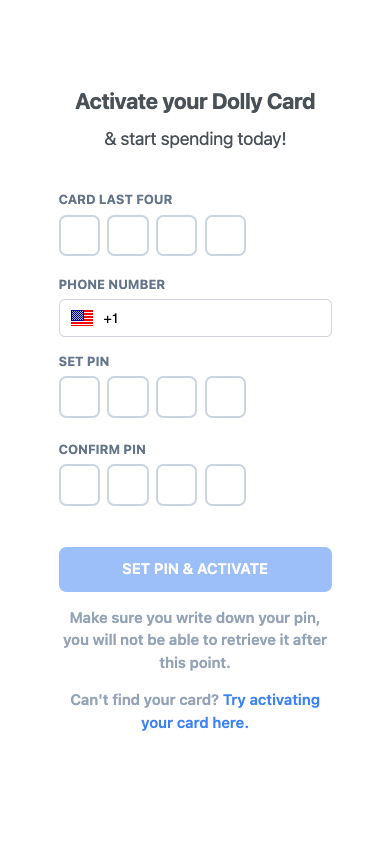
When your physical card arrives, use the activation link in your Dolly text, or go to app.dollycard.com/activate. Enter the card’s last four digits and your phone number, set a 4-digit PIN and choose SET PIN & ACTIVATE. You don’t need to sign in.
Activate the card
- Open the activation link from Dolly’s text, or app.dollycard.com/activate.
- Enter CARD LAST FOUR and the phone number on the card.
- Enter a 4-digit PIN in SET PIN and CONFIRM PIN. Write it down, because it can’t be shown again here.
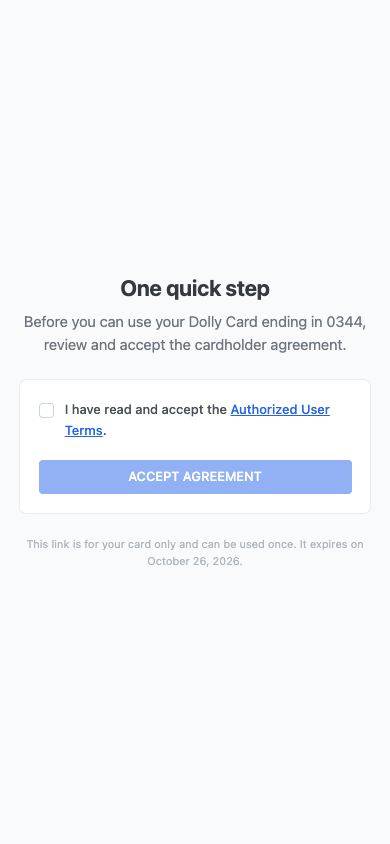
- Choose SET PIN & ACTIVATE. Some cards ask you to accept the cardholder terms first.
If you see Card not found, check the last four digits and use the phone number your production has for you.
Changing your PIN
Go through the same page again. On a card that is already active, it only sets a new PIN. Some physical cards also have View/Update PIN on the card page. See card details.
The purchase-check text
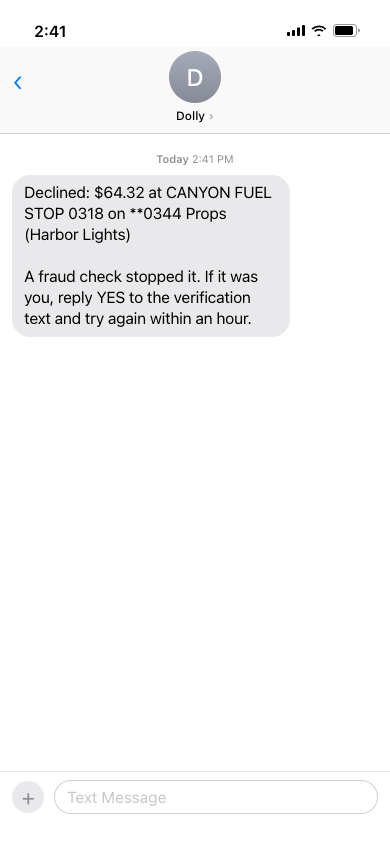
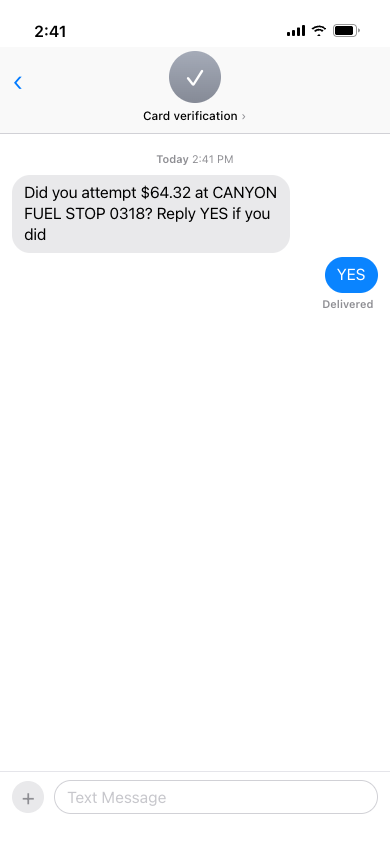
Sometimes a purchase is held for a quick check, and you get a text from a different number asking if it was you. Dolly also texts you that the charge was declined.
If it was you, reply YES to the check text and try the purchase again within an hour. If it wasn’t you, reply NO and contact your admin or Dolly. Your admin can also allow that purchase for 24 hours.
Frequently asked questions
- Do virtual cards need activating?
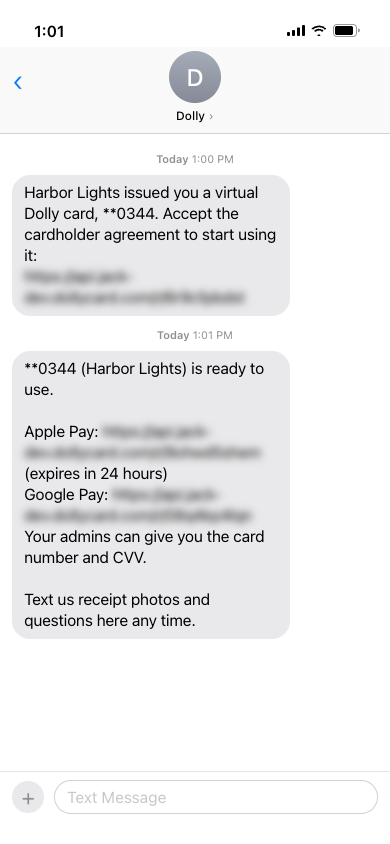
- No. Activation is for physical cards. Some cards ask you to accept the cardholder agreement by text link before first use.
- Can I use the card before the physical one arrives?
- Usually yes, through Apple Pay or Google Pay, unless your production preordered it to start on activation.
Keep reading
Get cards to your crew in as little as 24 hours.
Dolly issues controlled cards to every department, codes each charge to your budget, and keeps spend audit-ready as it happens.