For Crew
Paying Online: Card Number, Security Code and Billing Address
Dolly Card3 min read
The short answer
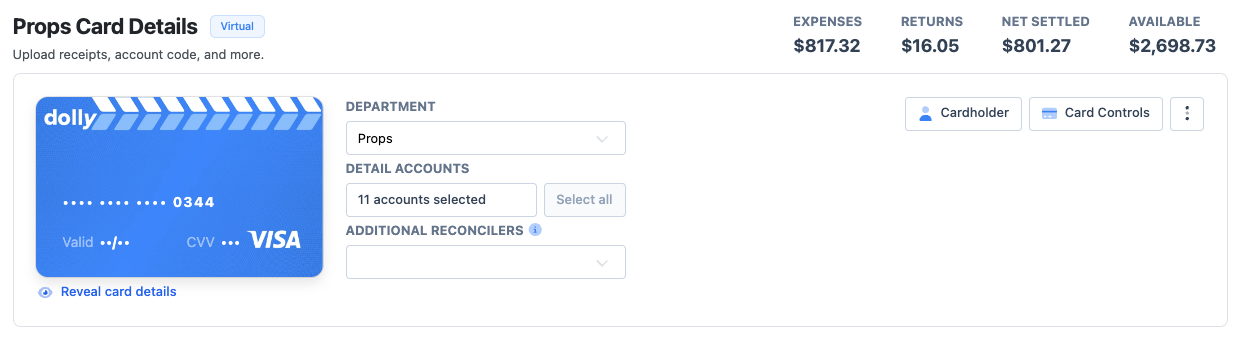
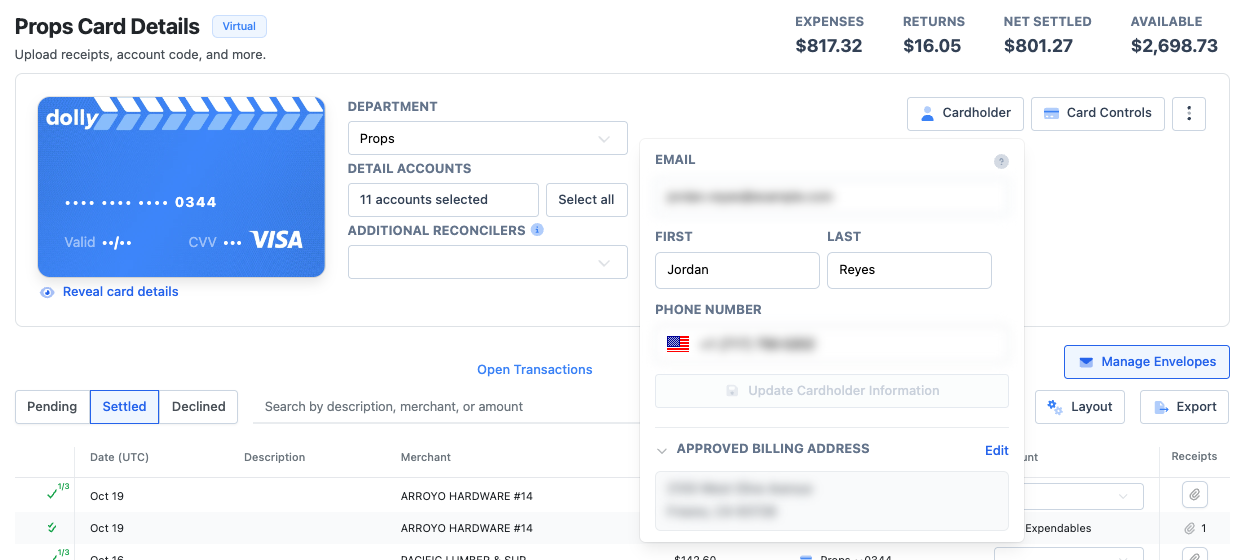
Sign in at app.dollycard.com and open your card. Choose Reveal card details to see the card number, CVV and expiration. The billing address is in the Cardholder panel on the same page. Dolly won’t send these by text.
Find the details
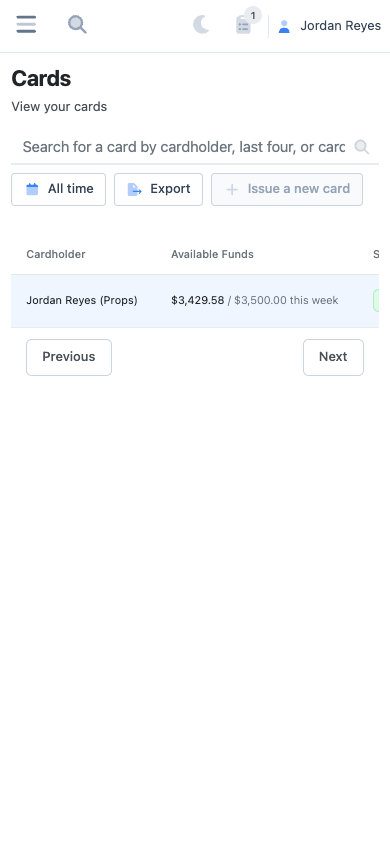
- Sign in at app.dollycard.com and open Cards, then your card.
- Choose Reveal card details. The first time, accept the Authorized User Terms. Some cards show the details without this step.
- Copy the Card number, CVV and Expiration. Choose Hide card details when you are done.
- Open Cardholder for the billing address to use at checkout.
Your PIN
On physical cards that offer it, open ⋮ on the card and choose View/Update PIN. Dolly emails a 6-digit code to the email on the card, which expires after 10 minutes. You can also set a new PIN on the activation page.
Frequently asked questions
- Can Dolly text me my card number or billing address?
- No. Card details and the billing address are only on your card page, after you sign in.
- Can I add the card to Apple Pay or Google Pay instead?
- Yes. See adding your card to a mobile wallet. Text Dolly if your wallet link has expired.
Keep reading
Get cards to your crew in as little as 24 hours.
Dolly issues controlled cards to every department, codes each charge to your budget, and keeps spend audit-ready as it happens.
& get cards to your crew in as little as 24 hours.