For Approver & Admin
Crew Requests: Texting In and Approving
The short answer
A cardholder texts Dolly, for example “I need 400 more.” Dolly confirms the details and sends the request to your approvers. Any admin can approve, adjust or decline it from the email, from Dashboard → Outstanding Tasks → Requests, or from the card’s Requests panel. Dolly texts the cardholder the answer. Set who approves in Settings → Approvals → Crew Requests.
What crew can ask for
| Request | What the cardholder texts |
|---|---|
| Unpause a card | “Can you unpause my card?” |
| Card limit | “Raise my weekly limit to 1500 for this week.” |
| More available to spend | “I need 400 more.” |
| Unblock a merchant | “Unblock the hardware store.” |
Crew text the same number Dolly sends their charge texts from. Dolly knows who they are by the phone number on their card, so they don’t sign in.
A card paused for fraud, or closed because the production wrapped, can’t be unpaused by text.
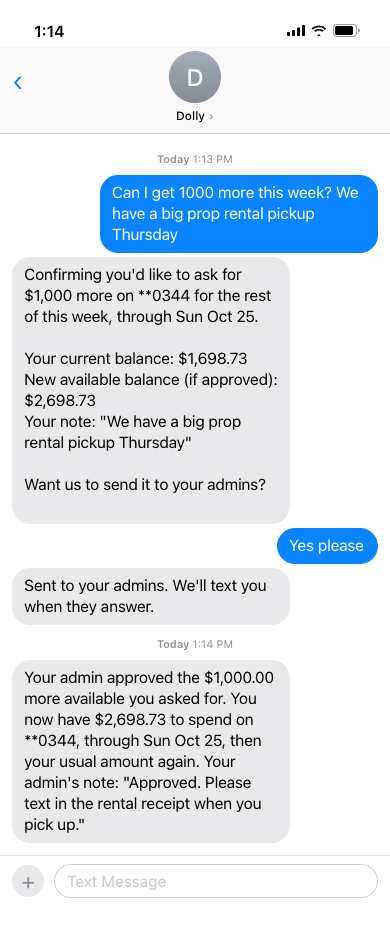
How a request comes in by text
- The cardholder texts what they need, and can add why.
- Dolly replies with the details: the card, the amount, how long it lasts, and what they would have to spend if it is approved. It asks whether to send it to the admins.
- The cardholder says yes. Dolly sends it to your approvers and tells the cardholder it will text them the answer.
- When an approver decides, Dolly texts the cardholder the result and any note the approver added.
A request that no one answers expires after 24 hours. The cardholder can text again.
Approving from the email
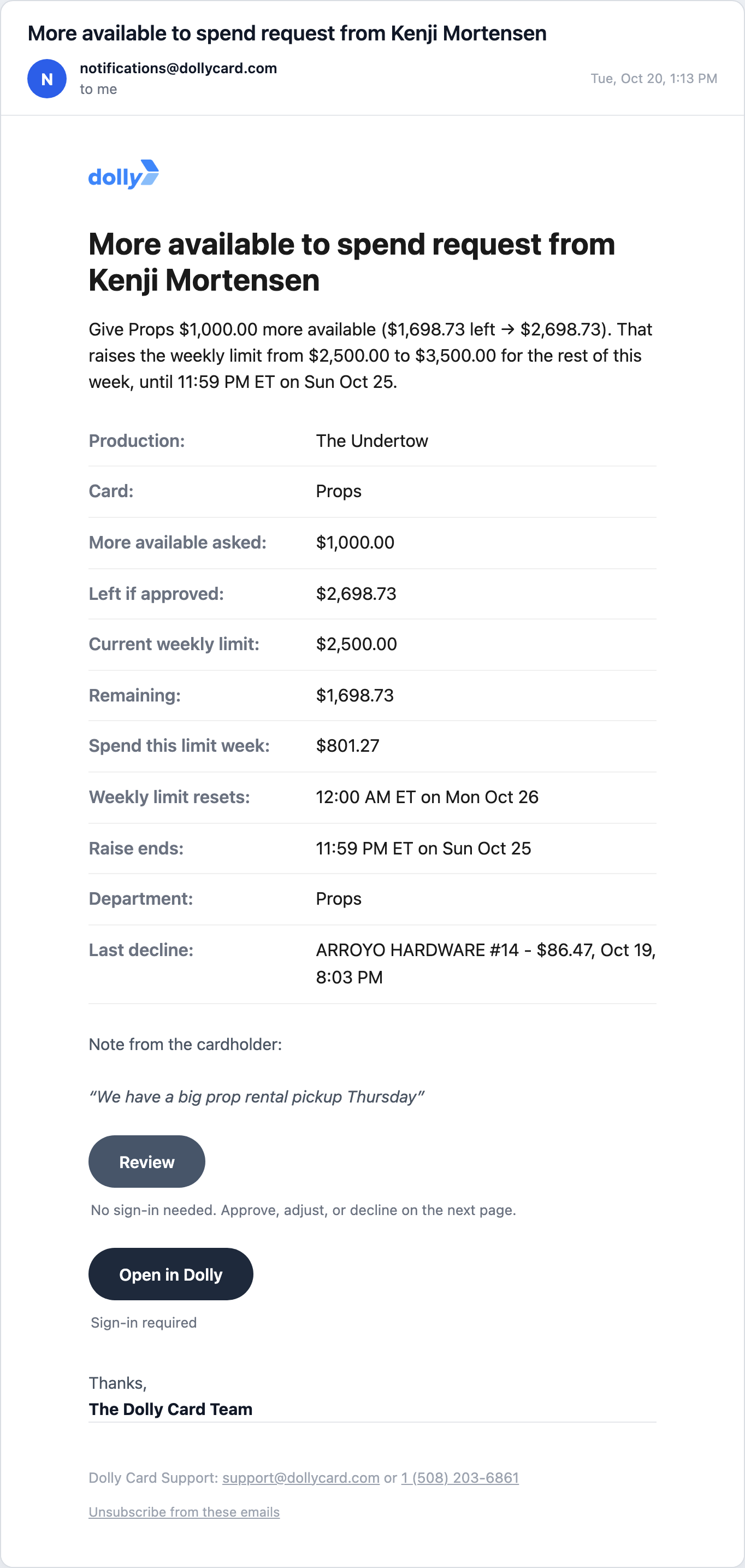
Everyone on the current approval step gets an email. The subject names the request and the cardholder, for example “More available to spend request from Kenji Mortensen”. The email spells out the change, the card’s limit and spend, and the cardholder’s note.
Choose Review to approve, adjust or decline on the next page without signing in. It shows when Allow approval by email is on for your step. Open in Dolly takes you to the card in Dolly, where you sign in first.
With the default setup, any admin on the production can answer. The first one to decide closes the request for everyone.
Approving from the dashboard
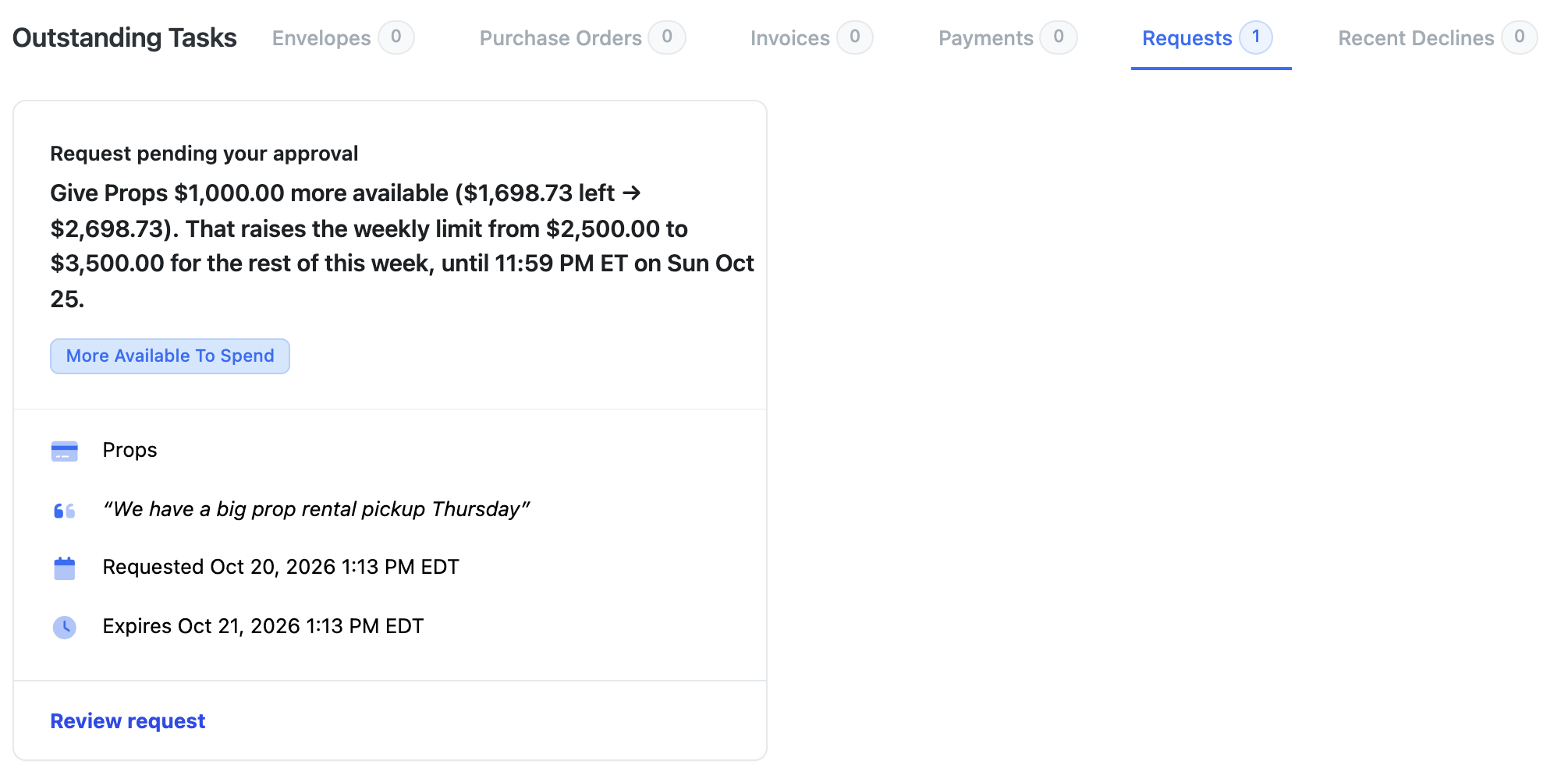
Open Dashboard and choose the Requests tab under Outstanding Tasks. The number beside it counts the requests waiting on you.
Each request has its own card: what was asked, the request type, the card, the cardholder’s note, and when it was sent and expires. Choose Review request to open it.
Reviewing a request
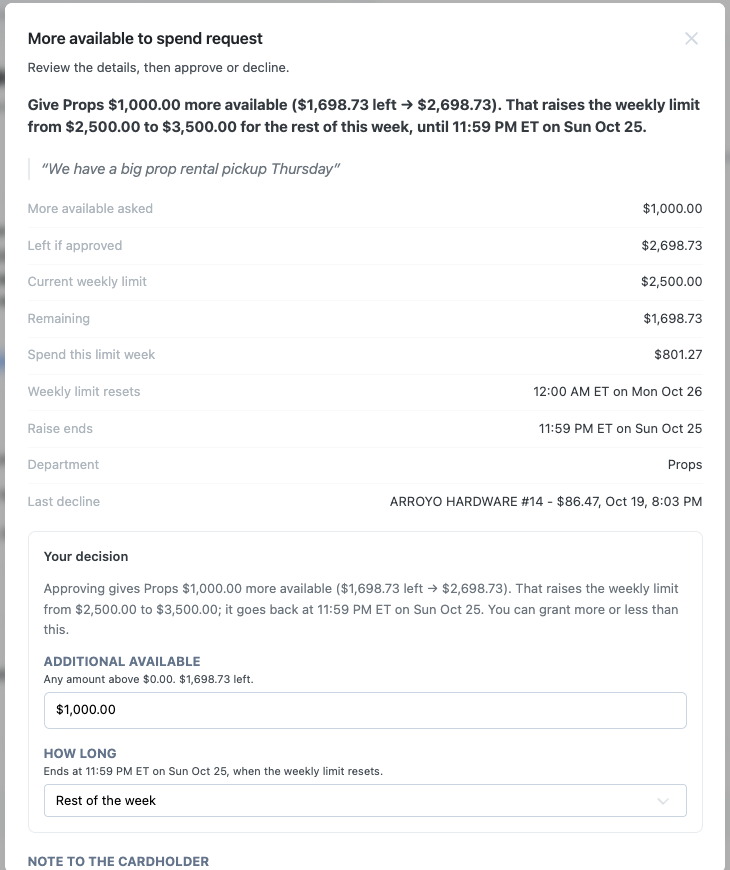
The review shows what was asked, the cardholder’s note, and the card’s numbers: current limit, what is left, what was spent this limit week, when the limit resets, the department and the last decline.
- Approve as asked, or change the amount. You can grant more or less than the cardholder asked for.
- For a limit or more to spend, choose How long it lasts: One purchase, Today or Rest of the week.
- Add a Note to the cardholder. Dolly includes it in the text.
- Decline if the answer is no. Dolly texts the cardholder that too.
Approving from the card page
Every card has a Requests side panel with that cardholder’s requests, open ones first. Admins can decide an open request right there.
- Open the card on Cards, choose the three-dot menu (⋮) next to Card Controls, then Requests.
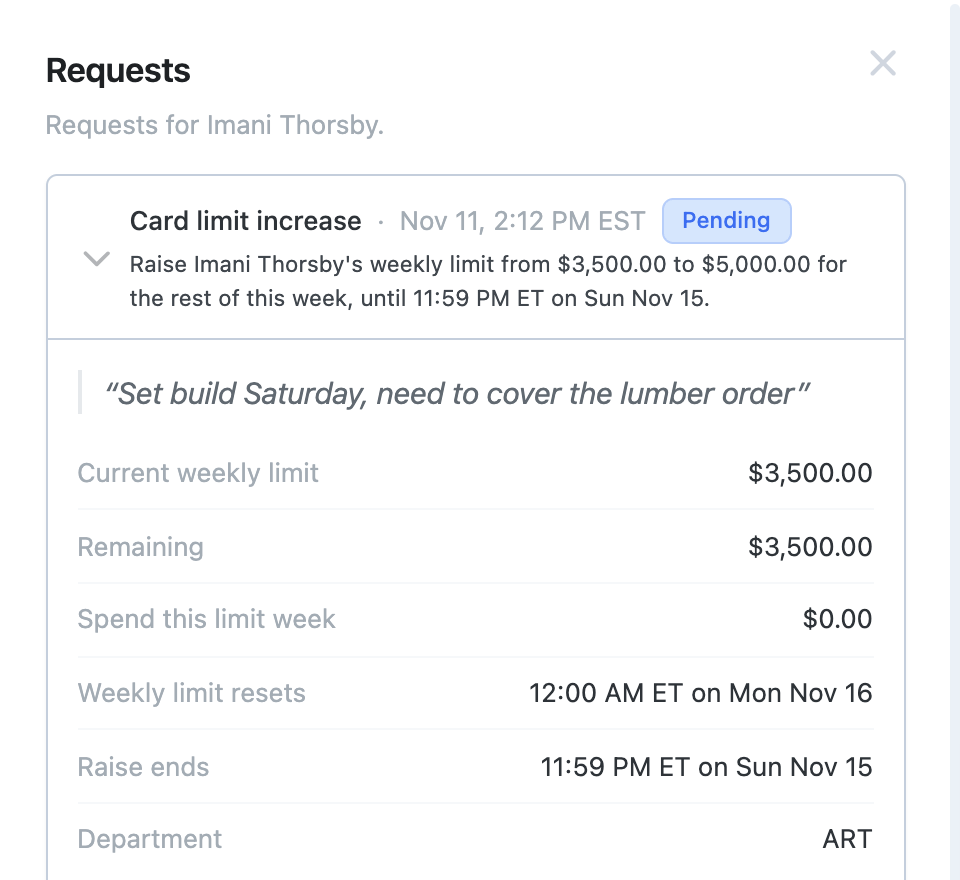
- An open request is already expanded. The top line shows the request type, when it was sent and Pending, with the full ask under it.
- Read the cardholder’s note and the card’s numbers: current limit, what is left, spend this week, when the limit resets and when a raise would end.
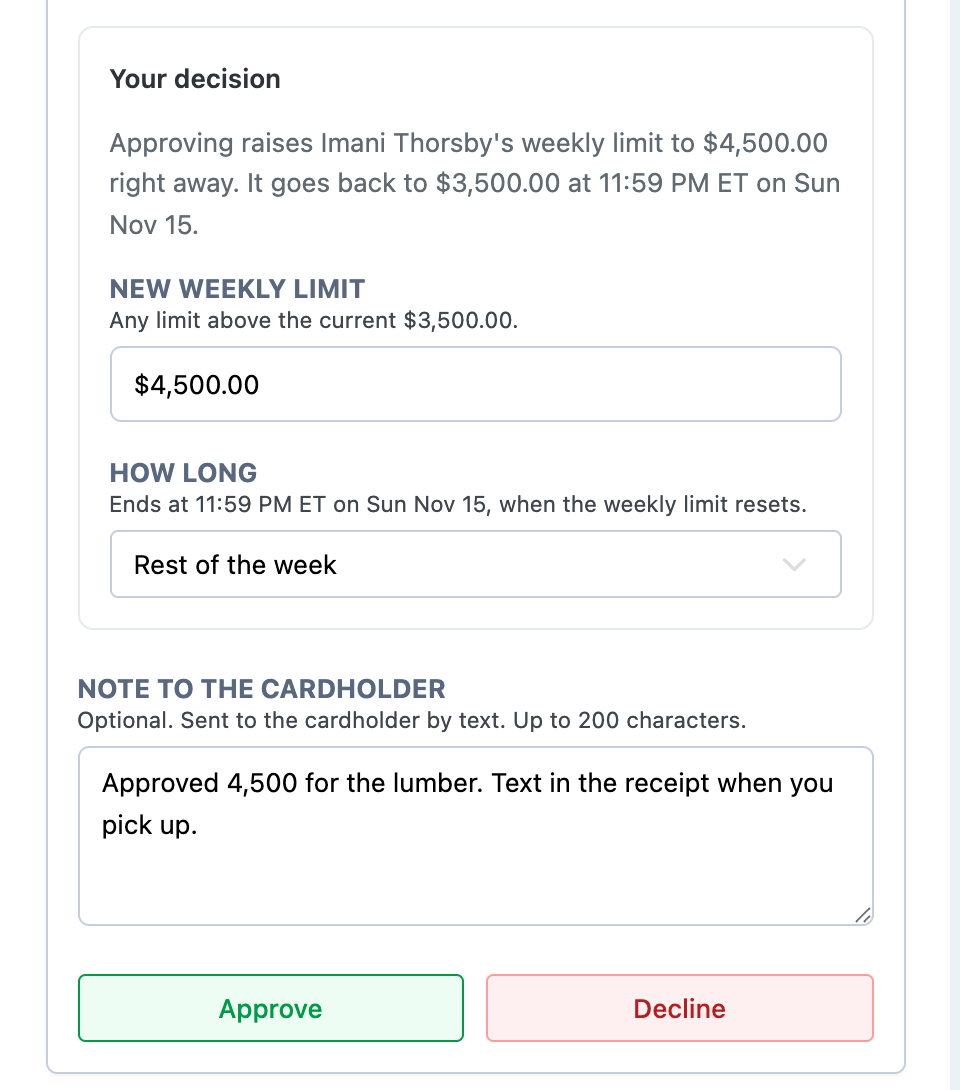
- Under Your decision, keep the amount or change it. How long offers One purchase, Today or Rest of the week. The sentence above the fields updates to say exactly what approving will do.
- Add a Note to the cardholder if you want. Dolly texts it to them, up to 200 characters.
- Choose Approve or Decline.
Requests that are already decided stay in the panel, collapsed, with who decided, how, and whether it was approved with changes. Someone who isn’t an approver on the current step sees Waiting on an approver. instead of the form.
Set who approves
Go to Settings → Approvals and open the Crew Requests tab.
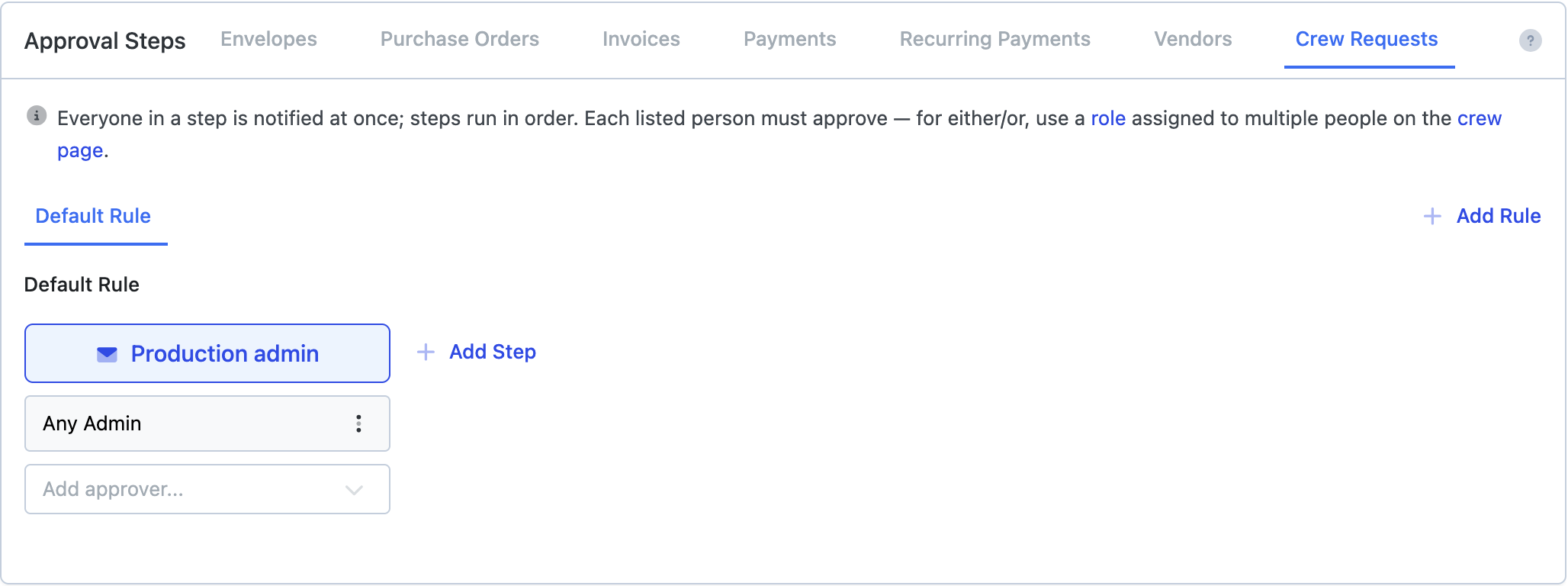
- The Default Rule covers every crew request. Out of the box it has one step, Production admin, with Any Admin as the approver.
- Use Add approver to put a person or role on the step. Everyone in a step is notified at once, and each person listed must approve. For either/or, use a role that several people have.
- Choose Add Step for a second sign-off. Steps run in order.
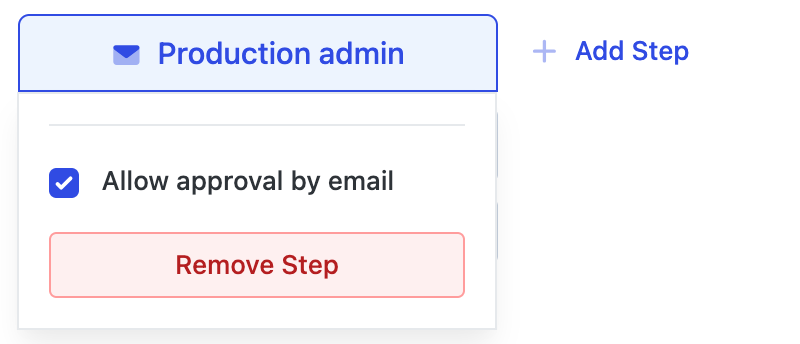
- Choose the step’s name to turn Allow approval by email on or off.
Different approvers for different requests
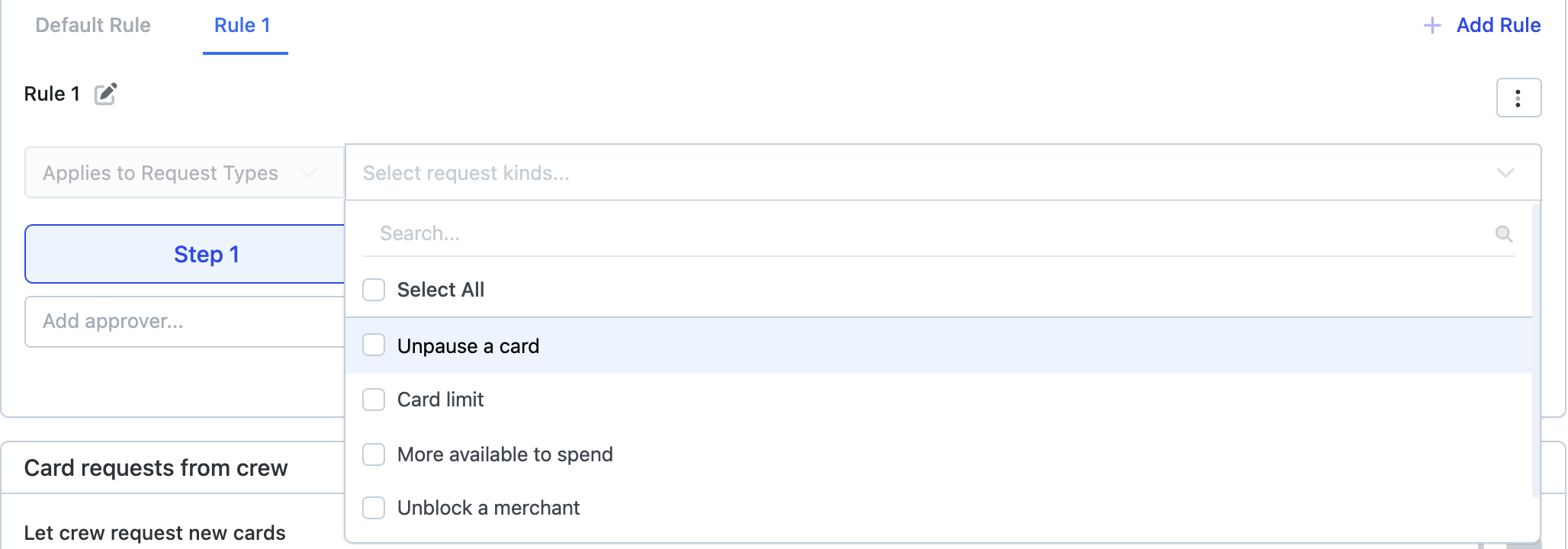
Choose Add Rule to send some kinds of request to other people. For example, unpausing a card can go to any admin while more to spend goes to the UPM.
- Choose Add Rule, then the pencil to give it a name.
- In Select request kinds, tick the kinds this rule covers: Unpause a card, Card limit, More available to spend, Unblock a merchant or Request a new card.
- Add its steps and approvers the same way as the default rule.
Anything a rule doesn’t cover follows the Default Rule. To remove a rule, choose its three-dot menu (⋮), then Delete Rule and Confirm Delete.
Letting crew request a new card
Crew can also ask for a card of their own. Turn on Let crew request new cards under Card requests from crew on the same tab. Crew then see Request a card on the Cards page.
These requests follow the same approval rules and stay open for 14 days. Turn on Require a signed agreement with each request if the requester should fill in and sign your agreement first.

Frequently asked questions
- Who gets a crew request if we never set anything up?
- Every admin on the production. Any of them can approve it, and the first answer closes it.
- Can I approve without signing in?
- Yes, from the email, as long as Allow approval by email is on for your step. Otherwise the email links to Dolly.
- Can I give less than the cardholder asked for?
- Yes. Change the amount before you approve, from the email’s Review page, the dashboard or the card’s Requests panel. Dolly texts the cardholder what was granted.
- What happens if no one answers?
- The request expires after 24 hours and the cardholder can text again. Requests for a new card stay open for 14 days.
Keep reading
Get cards to your crew in as little as 24 hours.
Dolly issues controlled cards to every department, codes each charge to your budget, and keeps spend audit-ready as it happens.