For Admin & Accounting
Using Dolly with Wrapbook
The short answer
Turn on Wrapbook in Settings → Integrations once, so your envelope exports use Wrapbook’s layout. Then export approved envelopes as CSV from the Envelopes page and import them in Wrapbook as PCard journal entries. You can skip the file formatting part of Wrapbook’s guide, and you don’t need to change its column mapping.
Set up Wrapbook (once)
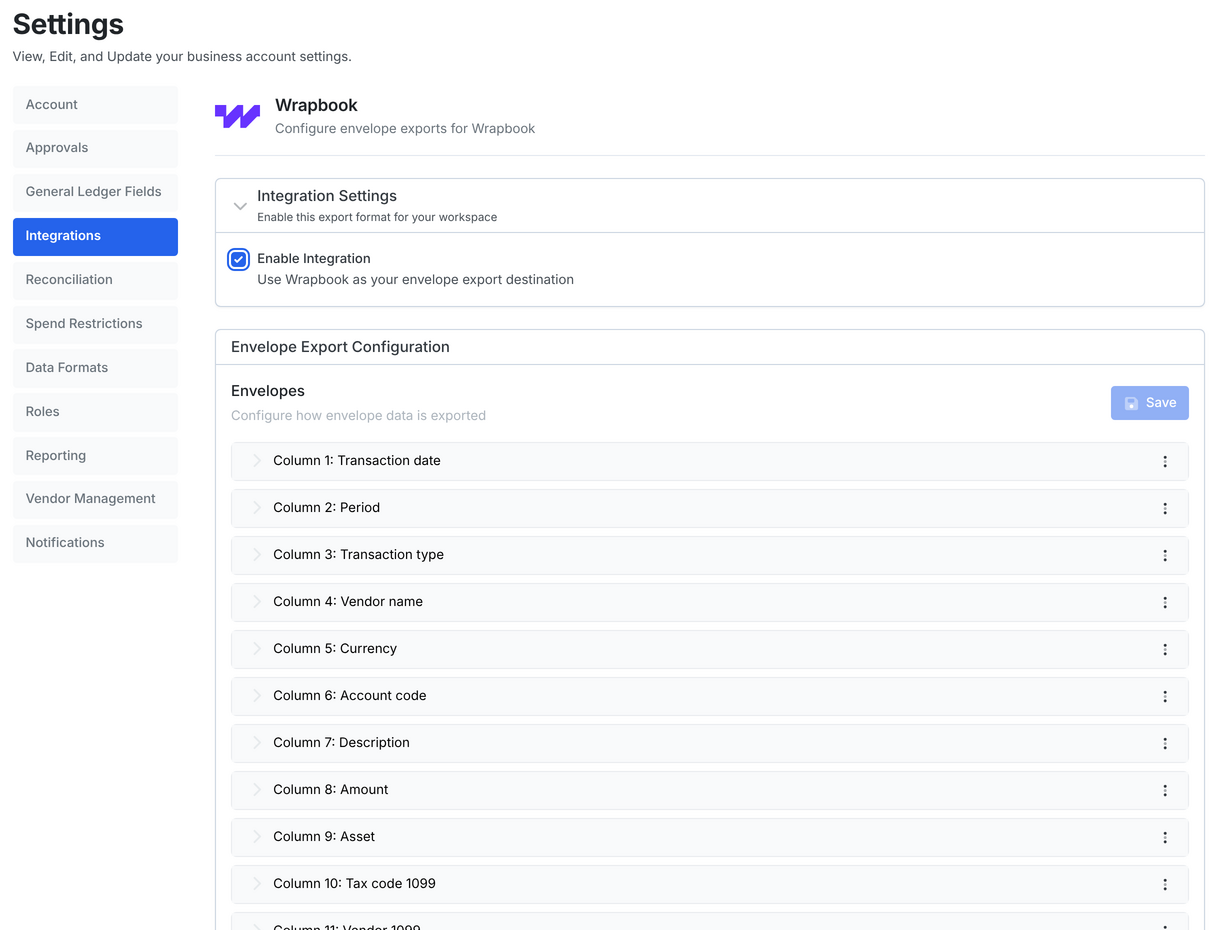
- Go to Settings → Integrations → All integrations and choose Wrapbook.
- Tick Enable Integration. Dolly shows the envelope columns Wrapbook expects.
- Choose Save Configuration. Your envelope exports now use the Wrapbook layout.
Already changed your envelope export columns? Dolly keeps your changes. Check them with your accountant, or ask Dolly Support to put the Wrapbook layout back.
Export one envelope
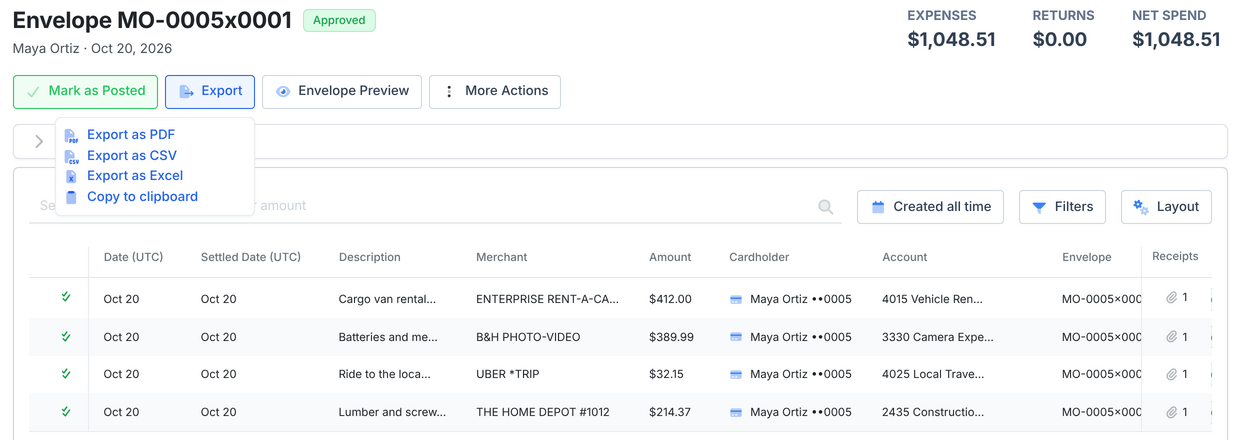
- Go to Envelopes and open the Approved tab.
- Open the envelope you want to import.
- Choose Export at the top, then Export as CSV.
Start with one envelope the first time, so you can check the import in Wrapbook before you send more.
Post and export several envelopes at once
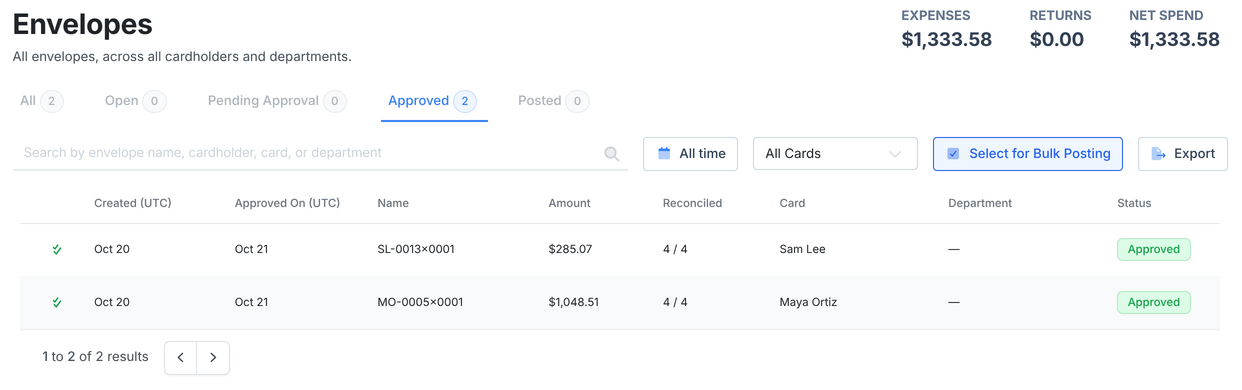
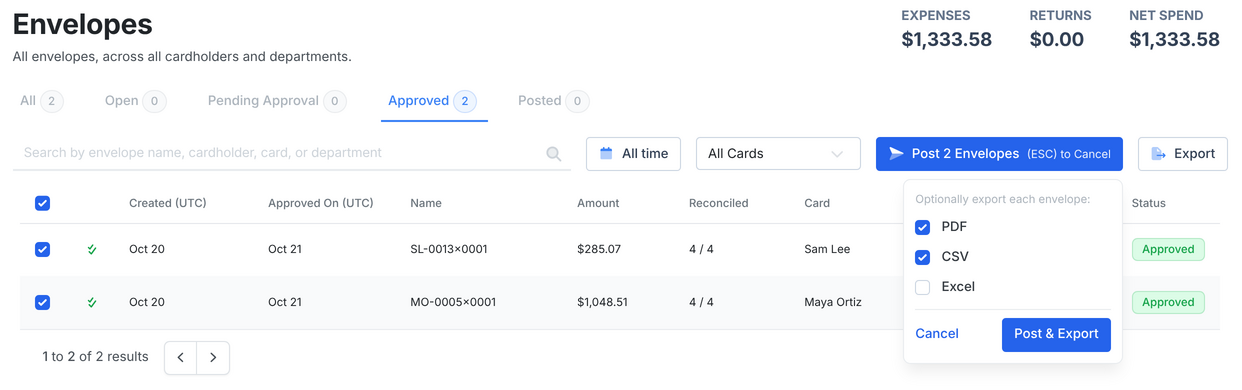
- Go to Envelopes and open the Approved tab.
- Choose Select for Bulk Posting on the right.
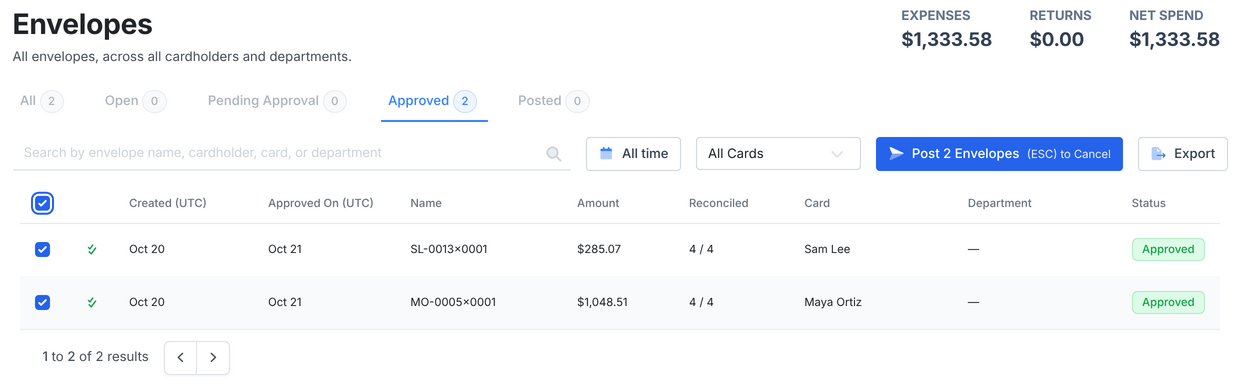
- Tick the box at the top of the list to select them all, or tick the ones you want, then choose Post X Envelopes.
- Pick your export formats. Keep PDF for your records and tick CSV for Wrapbook.
- Choose Post & Export. The envelopes move to Posted and the files download.
Import into Wrapbook
Follow Wrapbook’s guide, Importing PCard Journal Entries in Bulk. Skip the file formatting part of its first step, because Dolly’s file already matches. Leave the column mapping in its second step as it is.
Wrapbook Support can help with anything on the Wrapbook side.
Frequently asked questions
- Can I import an Excel file instead of a CSV?
- Yes. Excel exports use the same columns, and keep codes like 0305 intact.
- Do I have to bulk post?
- No. You can export one envelope at a time. Bulk posting saves time once your imports are working, and marks the envelopes as posted in the same step.
- Wrapbook rejected my file. What do I check?
- Check that the envelope export columns still match Wrapbook’s layout in Settings → Integrations → Wrapbook, and that every charge has an account code. Then contact Dolly Support with the file if it still fails.
- Does Dolly send envelopes to Wrapbook by itself?
- No. Wrapbook works through file import: you export from Dolly and import in Wrapbook.
Keep reading
Get cards to your crew in as little as 24 hours.
Dolly issues controlled cards to every department, codes each charge to your budget, and keeps spend audit-ready as it happens.