For Crew
How to Add a Dolly Card to Apple Pay or Google Wallet
The short answer
A virtual Dolly card can land in Apple Pay or Google Wallet when it is issued. To add one yourself, open the Wallet app, tap +, choose debit or credit card, and either enter the card details or scan the card. On iPhone, the scan option is labeled Enter Card Details Manually if you would rather type.
On an iPhone
These are the same steps as Dolly’s help guide. You will need the card number, the expiration date, and the security code. If you were invited to the Dolly platform, you can also open the card on a computer and scan it with the phone’s camera.
1. Open the Wallet app
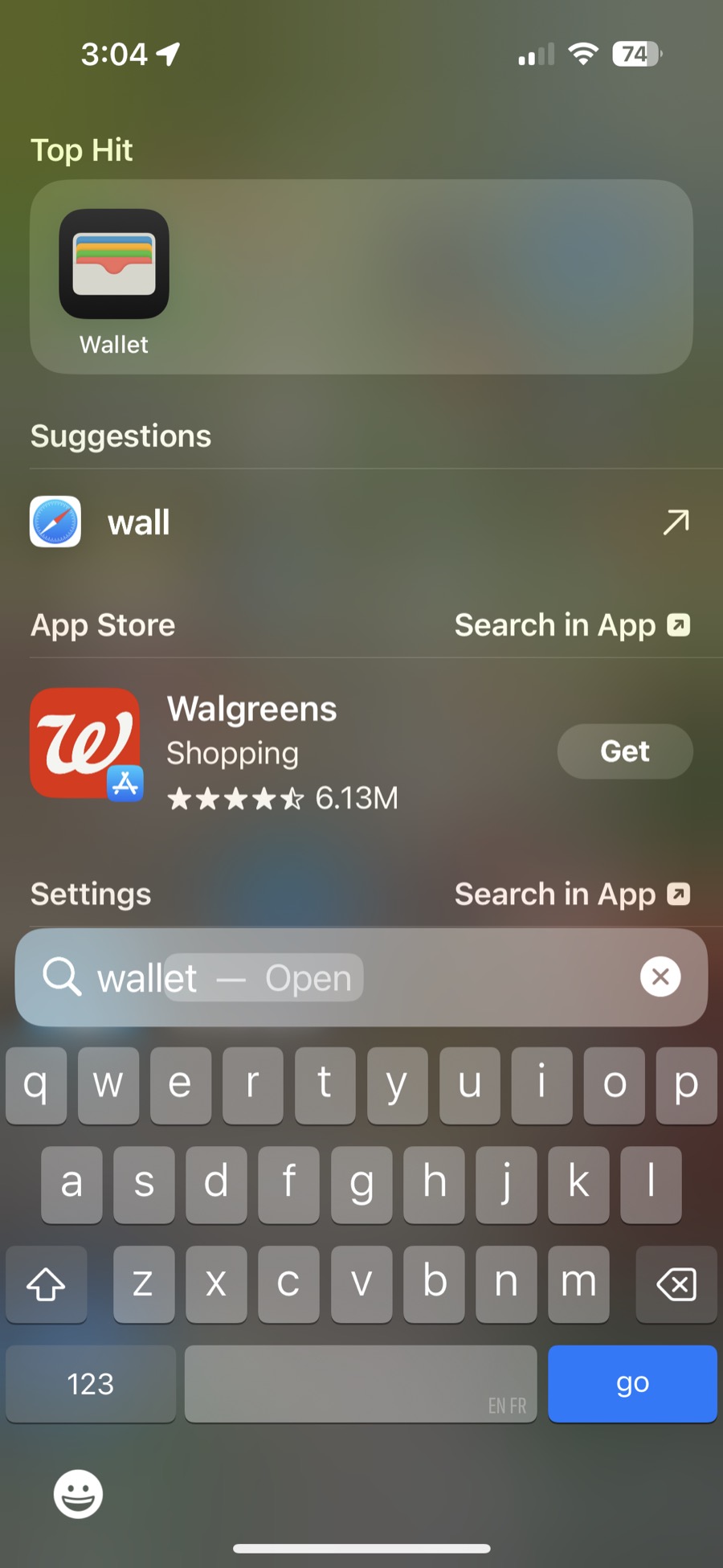
On the iPhone, open Wallet. If you do not see it, search for Wallet and tap it.
2. Tap the + button
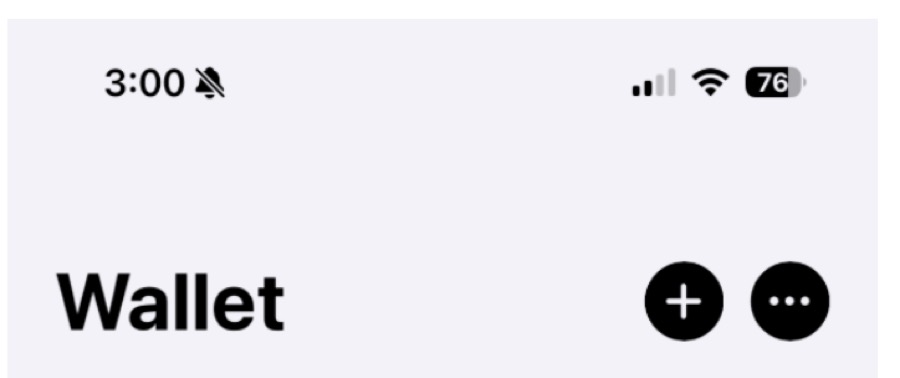
In Wallet, tap the plus in the top right.
3. Tap Continue
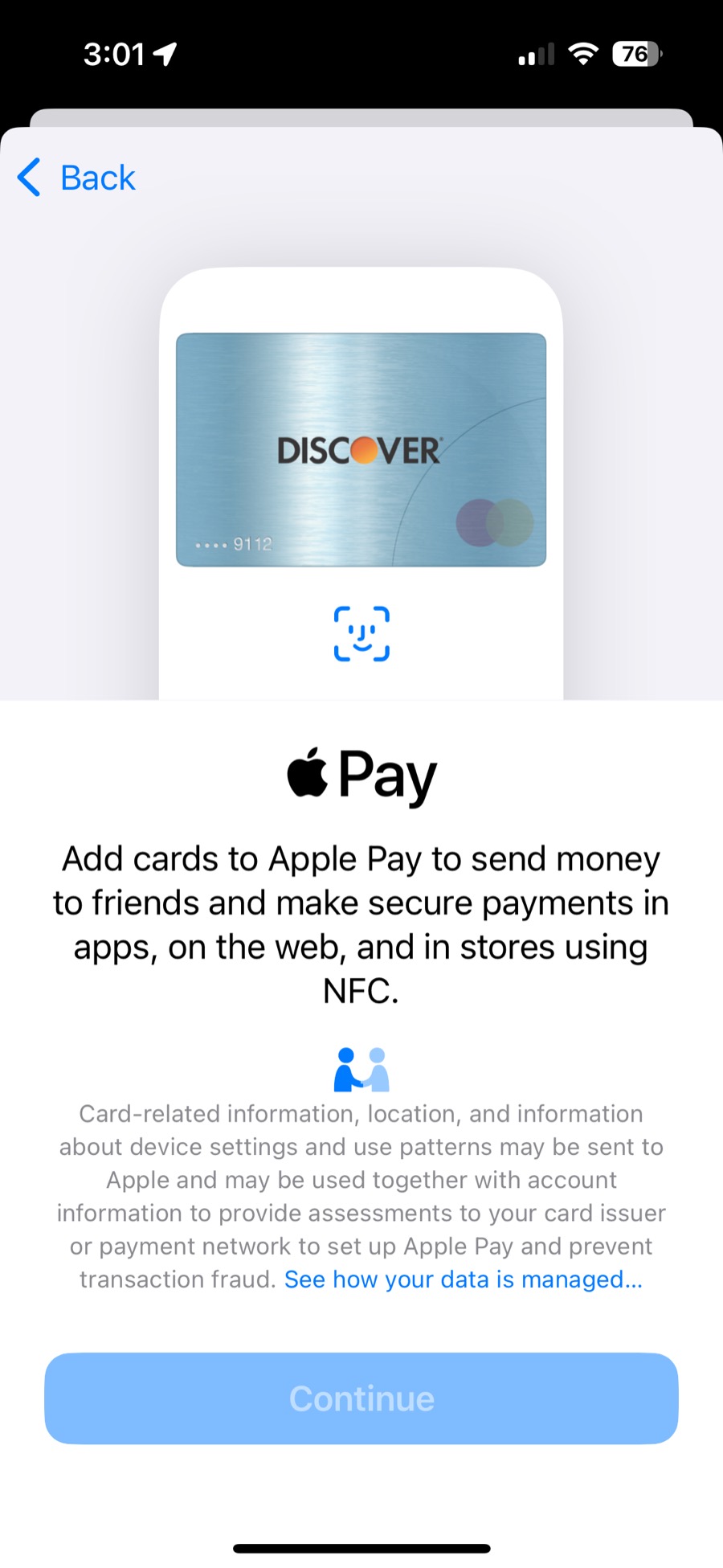
Apple Pay explains what adding a card does. Tap Continue.
4. Choose Debit or Credit Card
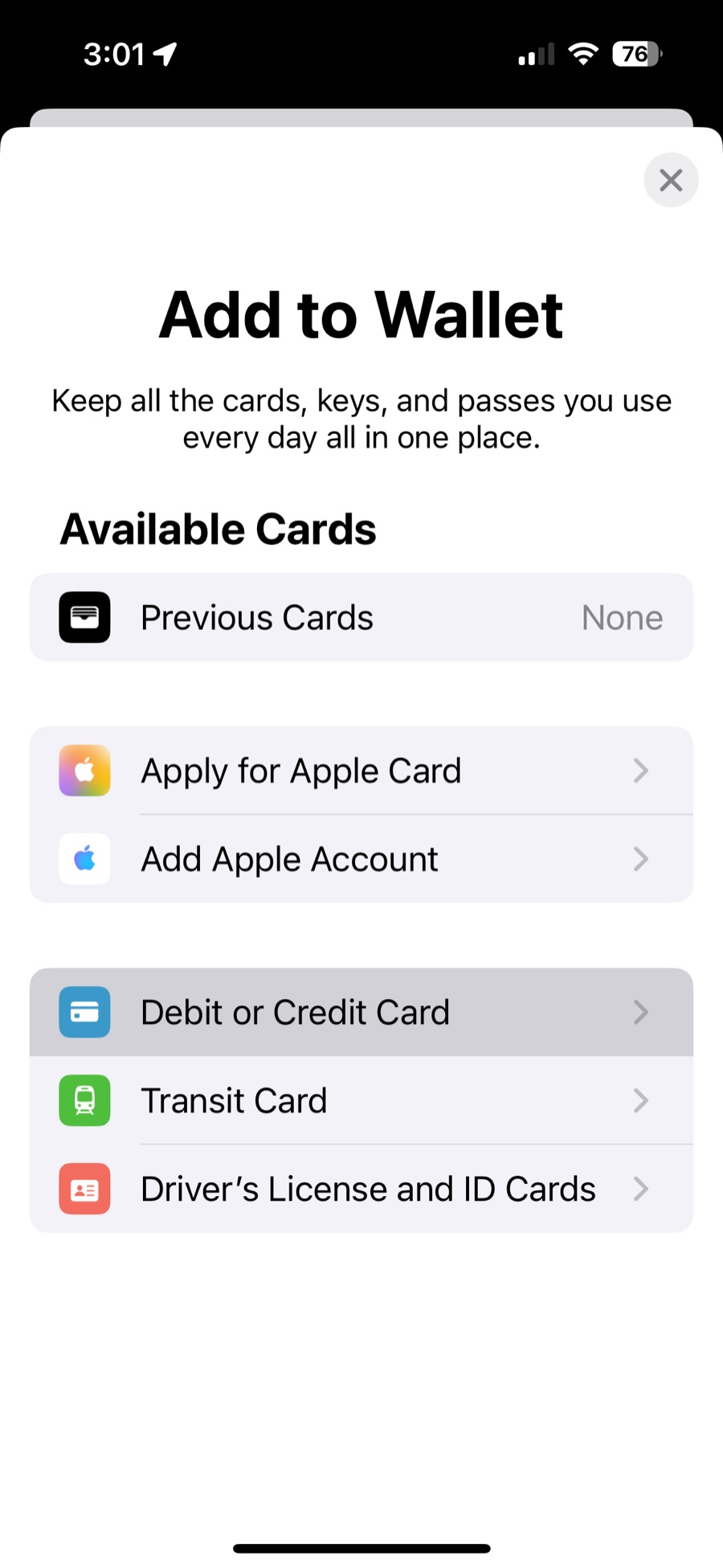
Under Available Cards, tap Debit or Credit Card. Do not choose Apple Card, transit, or an ID.
5. Enter the card yourself
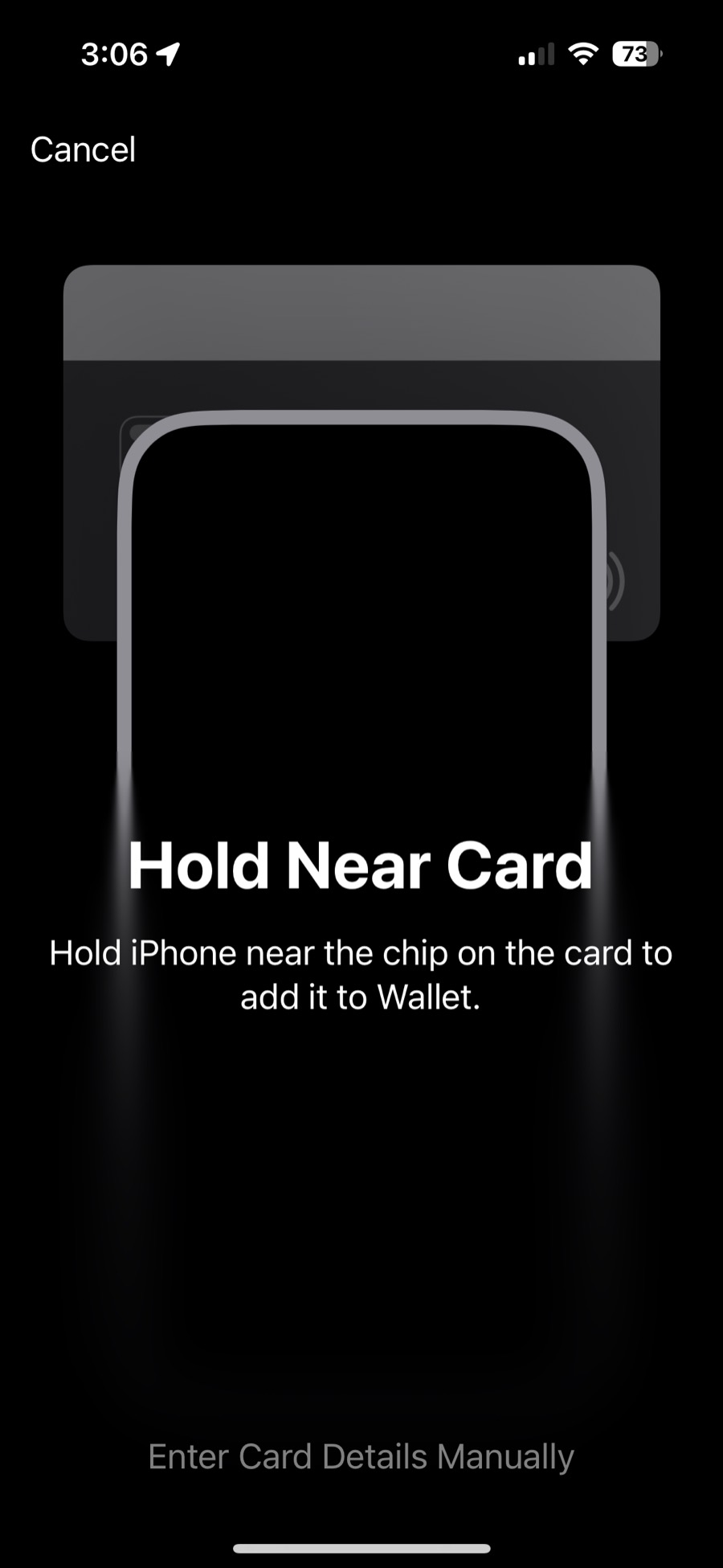
The phone may ask you to hold it near a physical card. If you are adding a virtual card, or you would rather type, tap Enter Card Details Manually at the bottom of the screen.
6. Enter the card details
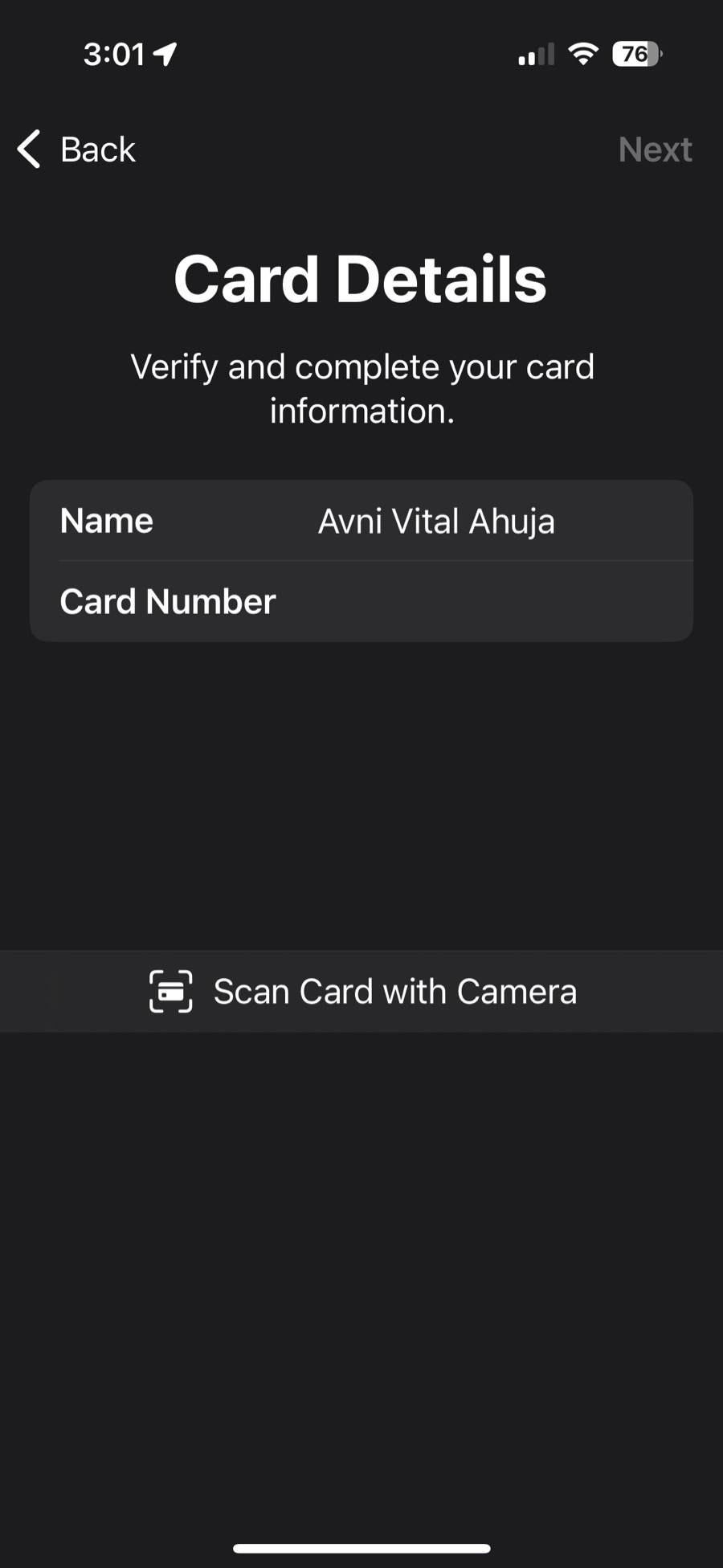
Type the name on the card and the card number, then the expiration date and security code on the next screen. You can instead tap Scan Card with Camera and scan the card from your computer if you were invited to the Dolly platform and the card is on screen.
On an Android phone
Open the Google Wallet app, tap Add to Wallet, and choose a payment card. Then enter the Dolly card details, or scan the card. The labels differ from the iPhone screens above. The information Google asks for is the same: name, number, expiration, and security code.
If the wallet will not take the card
- Check the number, the expiration date, and the security code. A single wrong digit is the usual problem.
- Make sure the card is active. A paused or canceled card cannot be added.
- Try the camera scan if you have the card open on a computer and you were invited to the platform.
- Contact Dolly at support@dollycard.com or 1 (508) 203-6861 if the details are right and it still fails.
The wallet card is the real card
Apple Pay and Google Wallet are not a separate card. They are the same Dolly card. If the phone is lost, contact Dolly and turn the card off. The wallet copy stops when the card does. You can add the replacement again with the steps above.
Frequently asked questions
- Do I have to wait for a plastic card?
- No. A virtual card can be added as soon as you have the card details, and virtual cards can also be sent straight to the wallet when they are issued.
- Can I scan the card instead of typing it?
- Yes. Tap Scan Card with Camera. If you were invited to the Dolly platform, you can scan the card from your computer screen.
- I lost my phone. Is the card still usable?
- Yes, until the card is turned off. Contact Dolly so it can be paused or canceled. Canceling the card turns off the copy in the wallet.
- Does this work for Google Wallet too?
- Yes. Open Google Wallet, add a payment card, and enter or scan the same card details. The screenshots above are from an iPhone.
Keep reading
Get cards to your crew in as little as 24 hours.
Dolly issues controlled cards to every department, codes each charge to your budget, and keeps spend audit-ready as it happens.